
Add WhatsApp Enquiry + Booking to a Service Website
Three ways to let customers enquire and book on WhatsApp from your site, from a ten-minute button to a fully automated flow, with the rules to follow and honest 2026 rupee costs.
WhatsApp Booking Integration Website Setup: The Short Answer
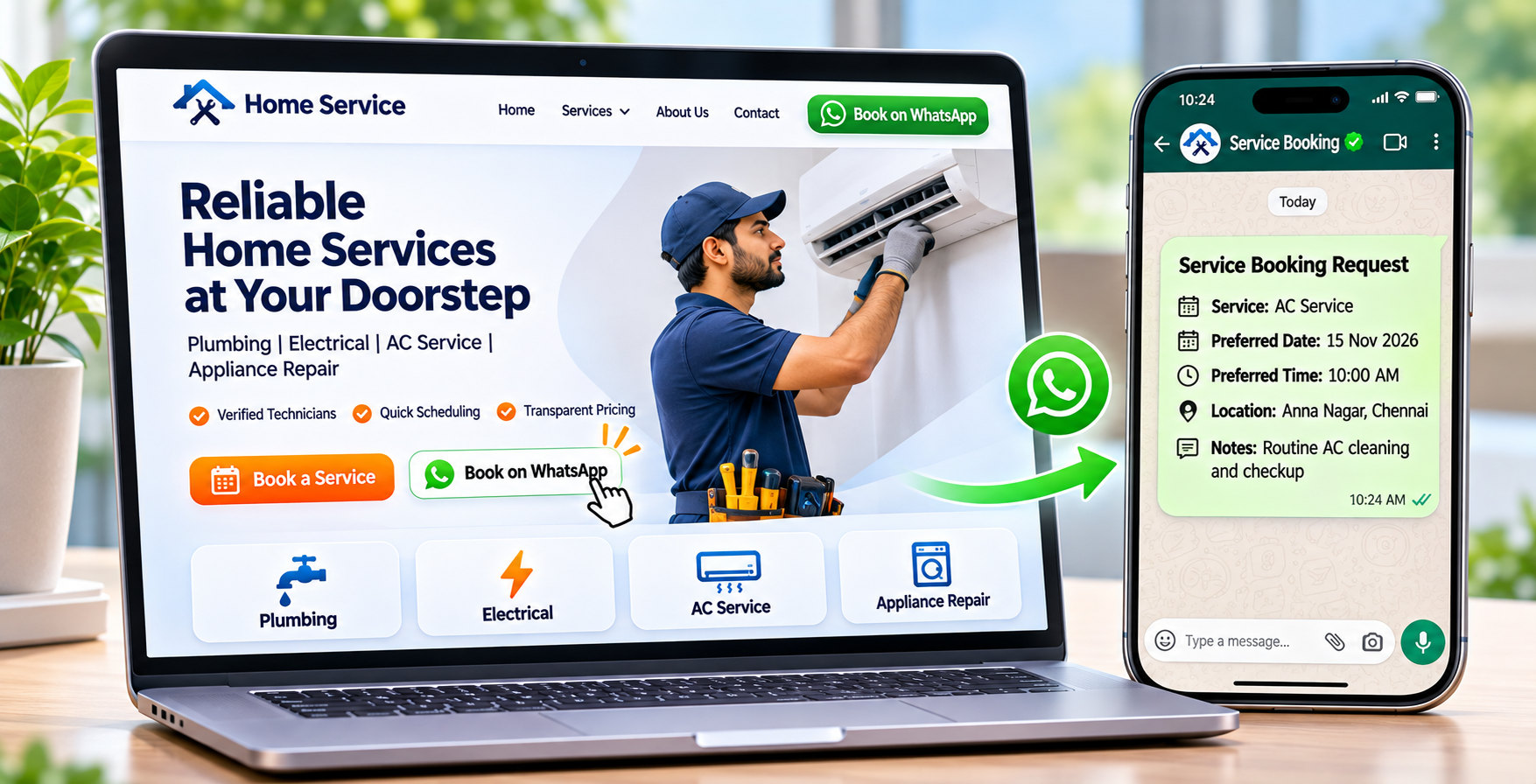
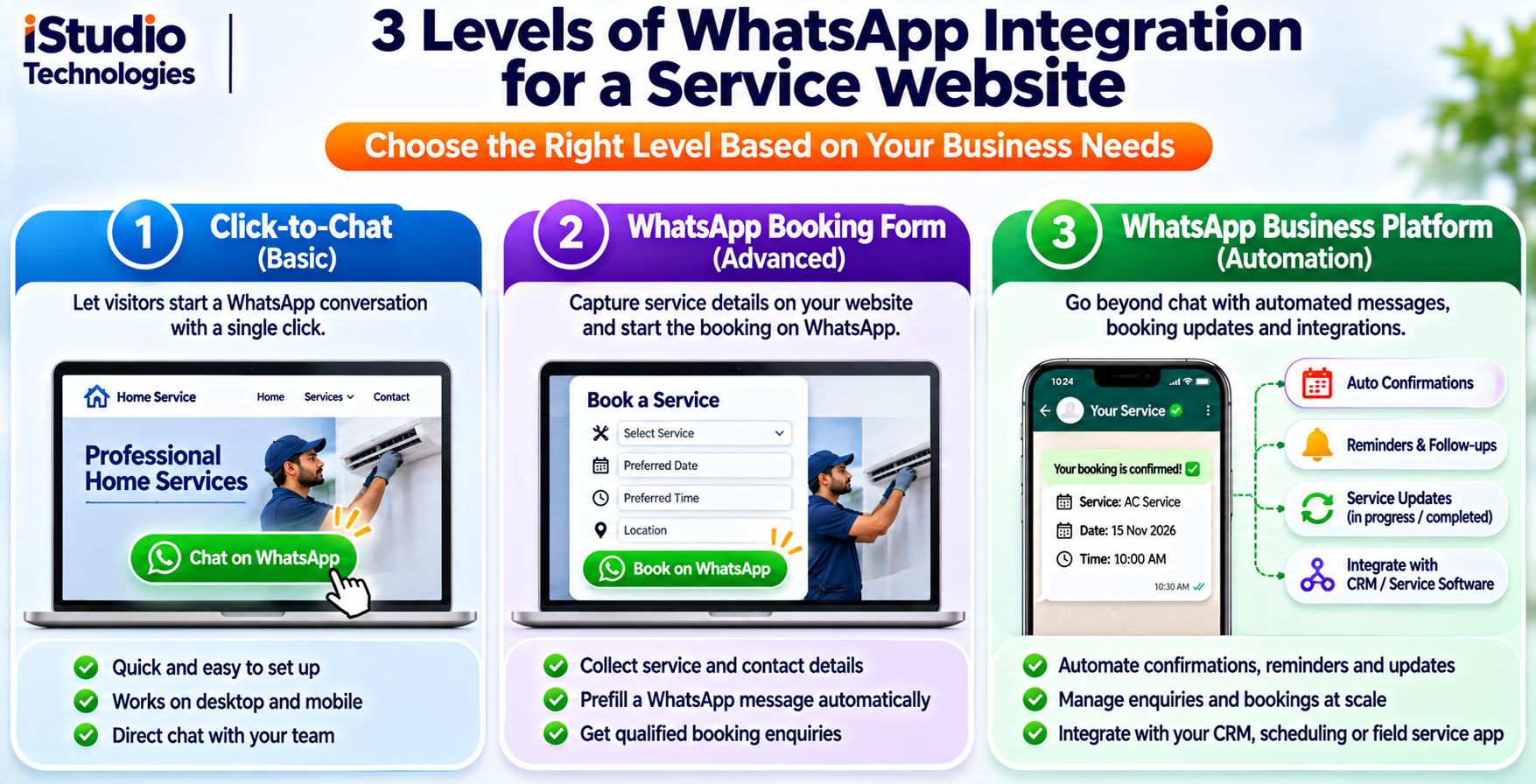
You can add WhatsApp enquiry and booking to a service website in three levels. Level 1 is a click-to-chat button that opens a conversation with your number. Level 2 is a booking form that sends the customer's details into a pre-filled WhatsApp message and saves the lead on your server. Level 3 connects your website to the WhatsApp Business Platform, so confirmations and reminders go out automatically. Most small service businesses should start at Level 1 or 2, and move to Level 3 only when volume justifies it.
We are a Chennai web development company, and we set up all three levels for clinics, salons, repair shops, coaching centres and home-service businesses. This guide explains how each level works, what to build, which rules apply and what it costs, so you can brief a developer or judge a quote.
Rupee figures are 2026 market estimates for planning, not a quote. WhatsApp's own pricing and policies change often, so we link to the official pages rather than quoting rates, and you should confirm current terms before you commit.
Want WhatsApp booking on your site? Message our team on WhatsApp or call +91 88070 03902 with your services, daily booking volume and current website, and we will recommend the right level.
Three Levels of WhatsApp Integration
Every WhatsApp booking integration website falls into one of three levels. Choosing the right one is the most important decision in the project, because the levels differ in effort, cost and rules, not just in features.
| Level | How it works | Best for | Main limit |
|---|---|---|---|
| 1. Click-to-chat button | A button or link opens a chat with your number, optionally with a typed message | Any business starting out | Manual replies; no record of the booking on your site |
| 2. Booking form to WhatsApp | A form collects service, date and details, saves the lead and opens WhatsApp with a ready message | Businesses with steady enquiries and one or two staff on chat | Customer must still tap send; confirmation is manual |
| 3. Business Platform automation | Your site and booking system send and receive WhatsApp messages through an official API | Higher volume, reminders, multi-staff teams | Setup effort, per-message fees, strict opt-in and template rules |
Notice that none of these levels requires you to give up your normal website. WhatsApp sits beside it, as the fastest way for a customer to reach you. The levels also build on each other, so a Level 1 button today does not stop you adding a form or automation later.
Why Customers Prefer WhatsApp
Many customers in India open WhatsApp many times a day and are happier sending a short message than filling a long form or waiting for a call. A button that starts a chat removes friction. The risk is the other side: if nobody replies quickly, the convenience turns into frustration. Decide who answers, during which hours, and what happens at night, before you add any button.
Level 1: Add a Click-to-Chat Button in Minutes
The simplest WhatsApp booking integration website feature is a click-to-chat link, and it needs no special software. WhatsApp's own click-to-chat guide explains the format: a link that starts with wa.me, followed by your full phone number in international format, and an optional text parameter holding a URL-encoded pre-filled message.
Build the Link Correctly
- Number format. Use digits only with the country code first, so an Indian mobile number becomes 91 followed by ten digits. Leave out the plus sign, spaces, dashes and any leading zero.
- Pre-filled text. Add a short message such as "Hi, I would like to book a service from your website". The customer sees it in the message box and presses send.
- Encoding. Spaces and special characters in the message must be URL-encoded, or the text will break.
- One number per outlet. If you have several branches, give each page its own button and number.
Place It Where Decisions Happen
Put a visible button in the header or a floating corner button, and repeat it on service pages, pricing sections and near contact details. A floating button must not cover important content, the cookie notice or the keyboard on small phones. Give it a clear text label, not just an icon, plus an accessible name so screen readers announce what it does.
On a phone, the link opens the app. On a desktop, it opens WhatsApp Web or the desktop app, which some customers do not use. Offer a call button and a normal enquiry form beside it, so customers who do not use WhatsApp are not lost.
Make the First Reply Count
Set up the WhatsApp Business app with a greeting message, an away message for after hours, and quick replies for common questions such as prices, timings and location. Add your working hours to the business profile. These small settings make a Level 1 setup feel professional and take under an hour.
Level 2: A Booking Form That Opens WhatsApp
A form-based WhatsApp booking integration website flow gives you structured information instead of a vague "hi". The customer picks a service, a date and a time, and the page builds a clean WhatsApp message from those choices. Your staff then reply with a confirmation.
A Minimal Example
This simplified snippet shows the idea. Your developer should add validation, error handling and your own design.
<form id="book">
  <select name="service">...</select>
  <input name="date" type="date" required>
  <input name="name" required>
  <button>Book on WhatsApp</button>
</form>
<script>
document.getElementById("book").addEventListener("submit", function (e) {
  e.preventDefault();
  var d = new FormData(e.target);
  var msg = "Booking request\nService: " + d.get("service") +
            "\nDate: " + d.get("date") + "\nName: " + d.get("name");
  window.open("https://wa.me/918807003902?text=" +
              encodeURIComponent(msg), "_blank");
});
</script>
Do Not Rely on the Customer Pressing Send
This is the most common weakness. The pre-filled message only becomes a booking if the customer taps send. Many will not. So the same form should also post the details to your own server and store the lead, then show a thank-you message and, if you wish, send an email or alert to your team. That way, even an unsent message leaves you with a lead to follow up.
- Keep it short. Ask only for what you need to book: service, preferred date and time, area, name and phone number.
- Add a reference code. Include a short code in the message so staff can match the chat to the saved lead.
- Protect the form. Use server-side validation and a spam check so bots do not fill your inbox.
- Say what happens next. A line such as "We will confirm on WhatsApp within working hours" sets honest expectations.
Level 3: Automate with the WhatsApp Business Platform
For a full WhatsApp booking integration website with automatic confirmations and reminders, you use the WhatsApp Business Platform, the official API for businesses. Your website or booking system sends and receives messages through it, and incoming messages reach your system through a webhook, which is a notification your server receives when something happens.
What Automation Makes Possible
- An instant booking confirmation with the service, time and address.
- Reminders before the appointment, with reschedule or cancel options.
- Replies that route to the right staff member based on service or area.
- Payment links, invoices or feedback requests after the job.
The Rules That Shape the Build
Under Meta's policies, you generally need a customer's opt-in before you message them, and messages you start outside a customer-initiated window must use pre-approved templates. Check Meta's current developer documentation for exact terms, since rules and categories change. Design your flow around templates for confirmations and reminders, and free-form replies only when the customer has just written to you.
Pricing is also not fixed. Meta moved to per-message pricing for business messaging in 2025, as described on its WhatsApp pricing updates page, and rates differ by message type and country. We give no per-message amounts here, because they change, so confirm them before you plan a budget.
Official Route, Not Shortcuts
Avoid tools that automate a normal personal or business app account or send bulk messages without consent. They risk your number being banned, which would cut off your main customer channel overnight. Use the official platform, either directly or through an approved provider, and own the account in your company's name.
Booking Logic: Slots, Confirmations and Calendars
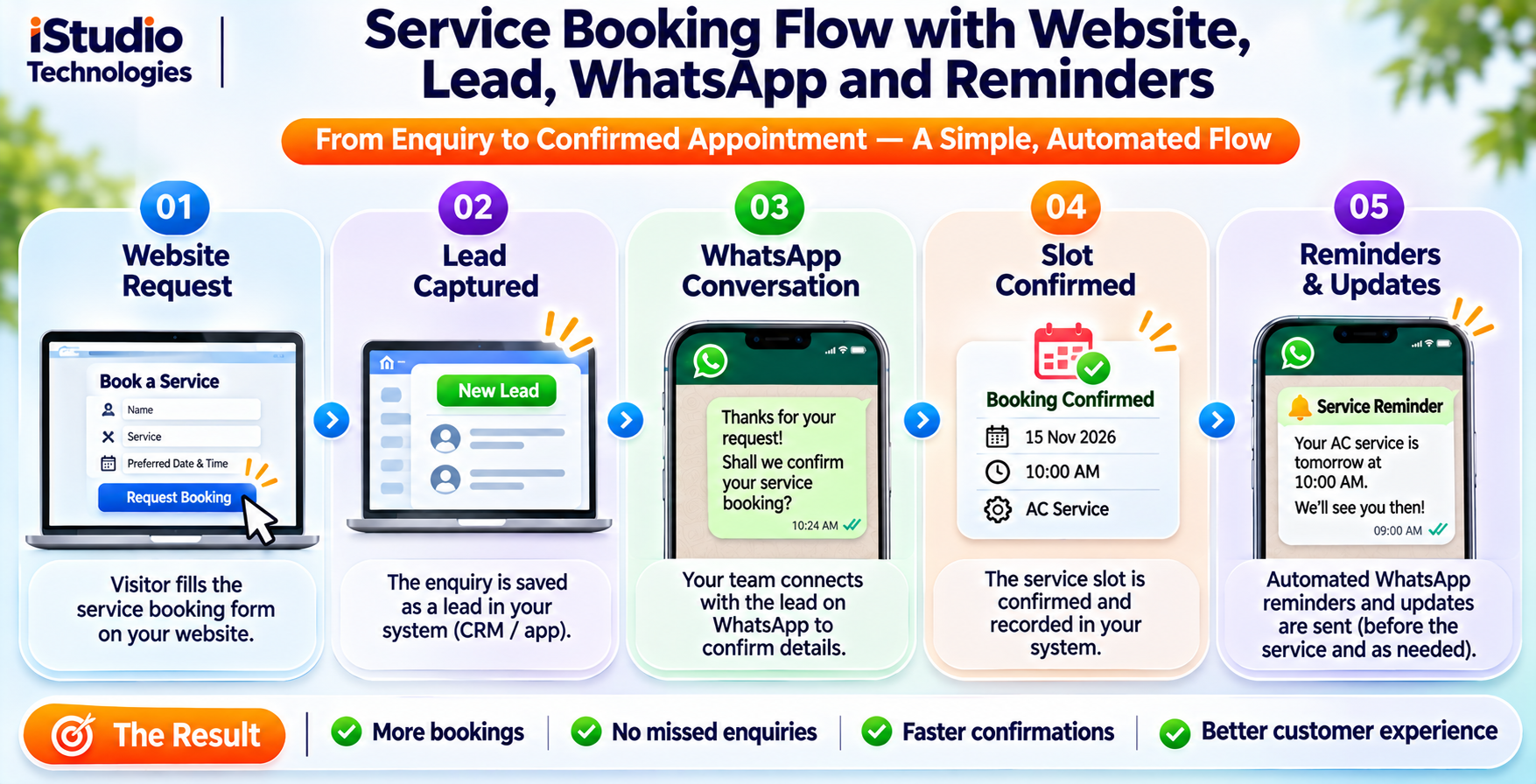
The part of a WhatsApp booking integration website project that surprises owners is that WhatsApp is only the messenger. A booking still needs rules about who is available, for how long, and what happens when plans change.
- Slots and capacity. Decide how long each service takes, how many bookings a staff member can handle and what buffer sits between jobs.
- No double booking. If two people request the same slot, the system must hold the first and offer the second another time. With manual chats, a shared calendar solves this.
- Requested versus confirmed. A customer's message is a request. Mark the booking confirmed only when your team or system accepts it, and tell the customer clearly.
- Changes and cancellations. Offer a simple way to reschedule or cancel, and release the slot immediately.
- Reminders. A reminder the day before often helps customers who forgot, though we cannot promise a fixed drop in no-shows.
- Calendar sync. Write confirmed bookings to the calendar your staff already use, in Indian Standard Time, to avoid mix-ups.
Test Before You Launch
- Try it on real phones. Test on an Android phone, an iPhone and a desktop browser, including the case where WhatsApp is not installed.
- Check special characters. Tamil text, ampersands and line breaks in the message must arrive correctly.
- Check the saved lead. Confirm the form saves the lead even when the customer never presses send.
- Test after hours. Make sure the away message or the automatic reply works at night.
- Test the slow case. Try on a weak mobile connection, since many customers will.
Privacy, Consent and Messaging Rules
Any WhatsApp booking integration website collects personal data such as names, phone numbers and sometimes addresses or health details, so privacy has to be part of the design. This is general guidance, not legal advice, and rules change.
Data Protection
India's Digital Personal Data Protection Rules were notified in November 2025, according to a Press Information Bureau release, with provisions being phased in. In practice, tell customers what you collect and why, collect only what you need, keep it secure and delete it when you no longer need it. Confirm what applies to your business with an adviser.
Consent for Messages
- Add a clear tick box or line on the form saying the customer agrees to receive booking messages on WhatsApp.
- Keep promotional messages separate from service messages, and ask for permission for promotions.
- Make it easy to stop messages, and honour requests at once.
- Never add customers to groups without asking, and never share one customer's details with another.
- Be careful with sensitive information. Avoid sending medical, financial or identity documents over chat unless the customer has agreed and you have a secure process.
Store a record of each customer's consent with the date and wording, and keep staff phones secure, because the chat history holds customer information. When a staff member leaves, remove their access to the business account at once.
Tracking Leads, Cost and Timeline
Measure your WhatsApp booking integration website from the start, because chats happen outside your site and are easy to lose track of. Without a plan, you will know you are busy but not why.
How to Track Enquiries
- Count button taps. Send an analytics event each time a WhatsApp button is tapped, tagged with the page it was on.
- Use reference codes. Put a short code for the page or campaign in the pre-filled message, so staff can see where the chat came from.
- Save every lead. Store form leads in a sheet or CRM with source, time and status.
- Track reply time and outcome. Record how fast staff replied and whether the lead became a booking.
A button tap is not a booking, so treat tap counts as interest and booking records as results. Ask new customers how they found you, and compare with your data.
2026 Cost Tiers and Timeline
| Tier | What it includes | One-time cost (2026) | Typical timeline |
|---|---|---|---|
| Level 1 button | Click-to-chat button, pre-filled text, placement on key pages, Business app set-up guidance | ₹0 to ₹5,000 | 1 to 2 days |
| Level 2 form | Booking form, lead saved to server or sheet, staff alert, consent line, button tracking | ₹10,000 to ₹40,000 | 3 to 7 days |
| Level 3 automation | Business Platform connection, templates, confirmations, reminders, webhooks, lead dashboard | ₹50,000 to ₹2 lakh | 3 to 6 weeks |
| Full booking engine | Level 3 plus slots, staff calendars, payments and rescheduling | ₹1.5 lakh to ₹5 lakh or more | 6 to 12 weeks |
Ongoing costs are separate: provider or hosting fees, per-message charges from Meta for template messages, and maintenance. Prices depend on the number of services, staff, branches and integrations with your existing systems.
Why Build with iStudio Technologies
We are iStudio Technologies, a web, software and mobile company in Valasaravakkam, Chennai, with 17+ years behind us, 500+ projects delivered and an in-house team that handles design, development, QA and support under one roof. For a WhatsApp booking integration website that fits how your team works, being local helps: we can sit with your staff, see how enquiries are handled and design around it.
We tell you honestly which level you need. If a button solves your problem, we will say so rather than sell you automation. We do not promise a fixed number of extra bookings, because results depend on your service, price and response time. We do commit to a clear scope, clean code you own and a setup that follows WhatsApp's rules, so your number stays safe.
What We Need from You
Projects move fastest when you share your list of services with durations, your working hours, who answers chats, your current website access, and the number you want to use. If you are considering automation, tell us your expected daily bookings and the booking tool or calendar you use now.
Want a fixed-scope quote for WhatsApp booking on your website? Tell us your services, staff and daily volume.
WhatsApp +91 88070 03902Frequently Asked Questions
How do I add WhatsApp booking to my website?
Is a WhatsApp button free to add?
Does the customer have to press send?
Is the WhatsApp Business API free?
Can I message customers without their permission?
Which level is right for a small business?
Does iStudio Technologies set up WhatsApp booking for websites?
Related iStudio Technologies Services
More of our work that connects to WhatsApp booking, grouped by what you need next.
Build
- Web development company in Chennai, the home for forms, booking and integrations.
- Web design company in Chennai for service websites that convert.
Software and Apps
- Software development company in Chennai for booking engines and dashboards.
- Mobile app development company in Chennai for staff and customer apps.
Get Customers
- Digital marketing company in Chennai to bring visitors to your site.
- Local SEO services in Chennai for near-me searches.
Get a Scoped Quote for WhatsApp Booking on Your Website
Tell us your services, your staff and your daily bookings. We will recommend the right level and put the number in writing.
WhatsApp or call +91 88070 03902